Make yourself
at home.
We’ll help you find your people, save their stories, and make room for the memories still to come.
 One family.
So many stories.
Your guide to Family Tree Moments
20 videos · written steps · English captions
20 guides
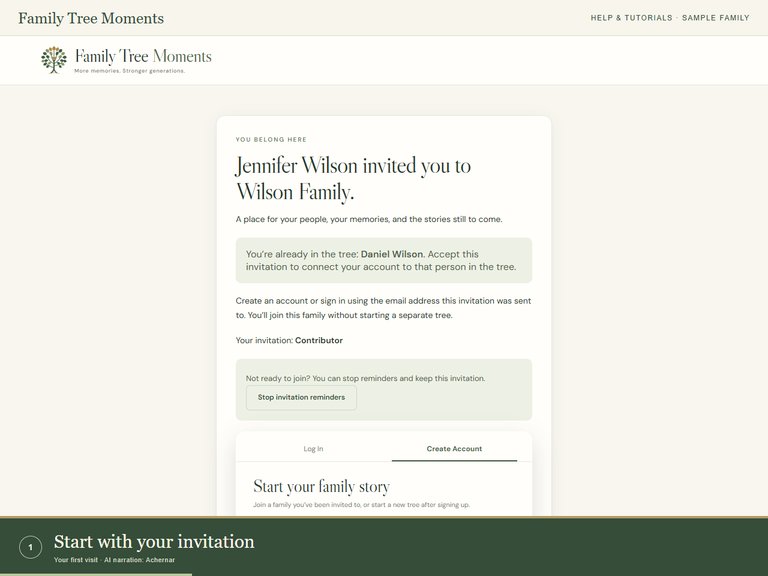 0:49
0:49Your first visit
Join an invitation, sign in, and find your family without creating a duplicate tree.
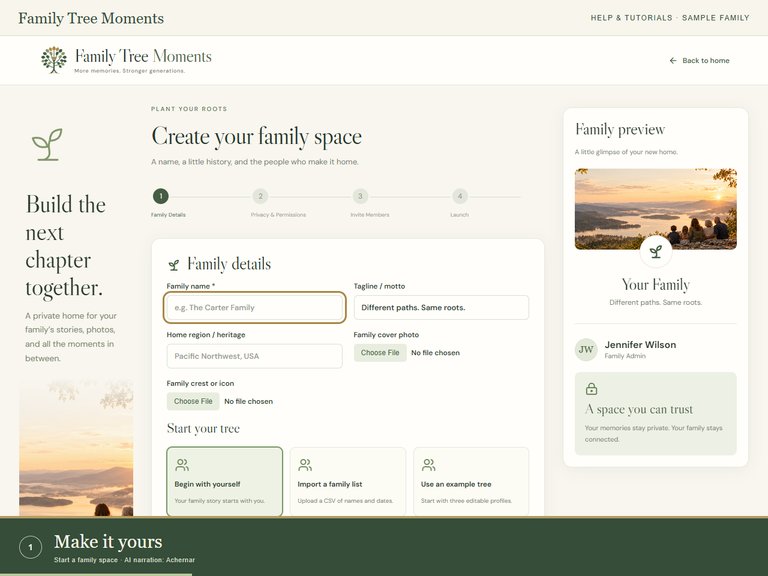 0:55
0:55Start a family space
Choose a family name, set up the tree, and review the privacy settings.
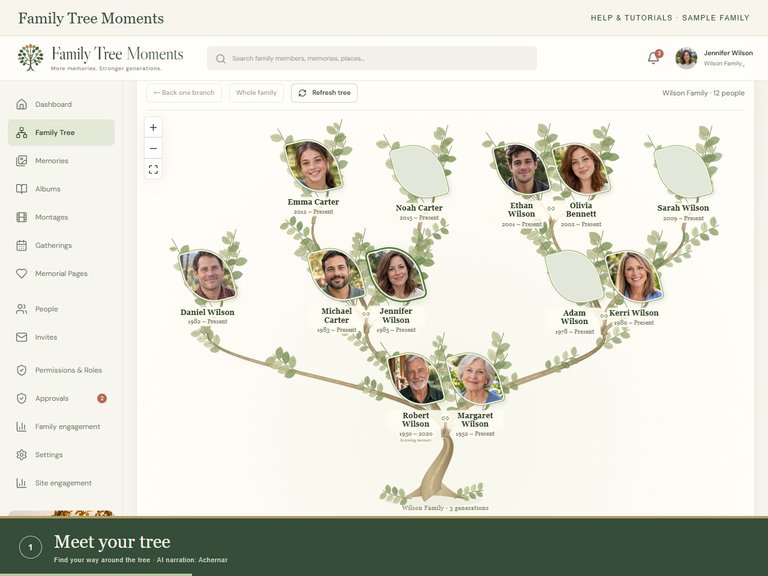 0:49
0:49Find your way around the tree
Select a leaf, focus a branch, find someone, and return to the whole family.
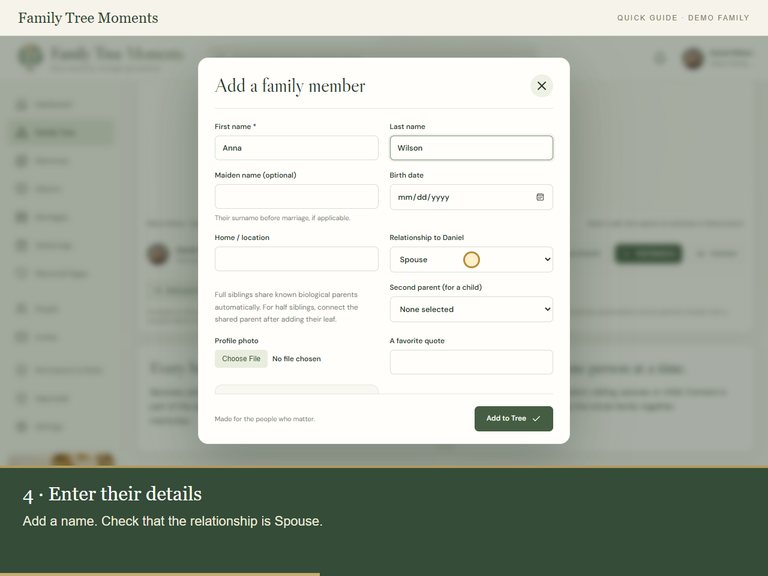 1:48
1:48Add a spouse, child, or relative
Start with your leaf, add a spouse and child, and connect both parents.
 0:53
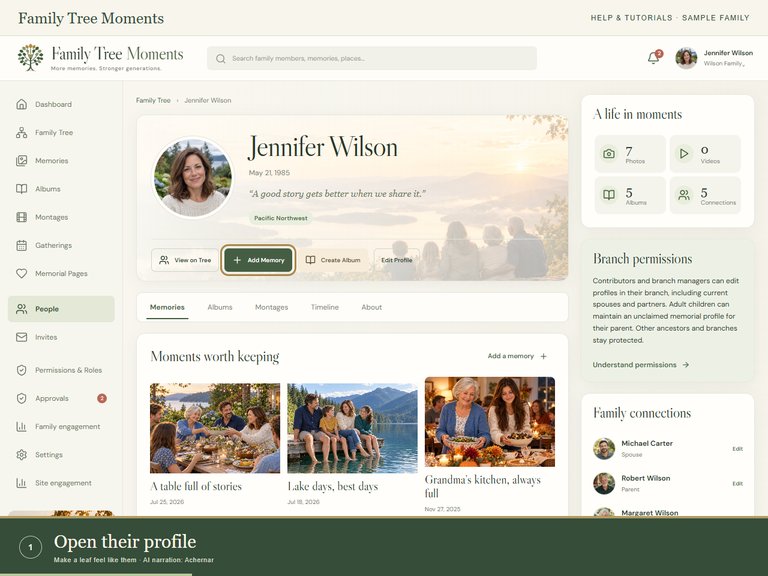
0:53Make a leaf feel like them
Edit a name, add a maiden name and biography, and crop a portrait for the leaf.
 0:54
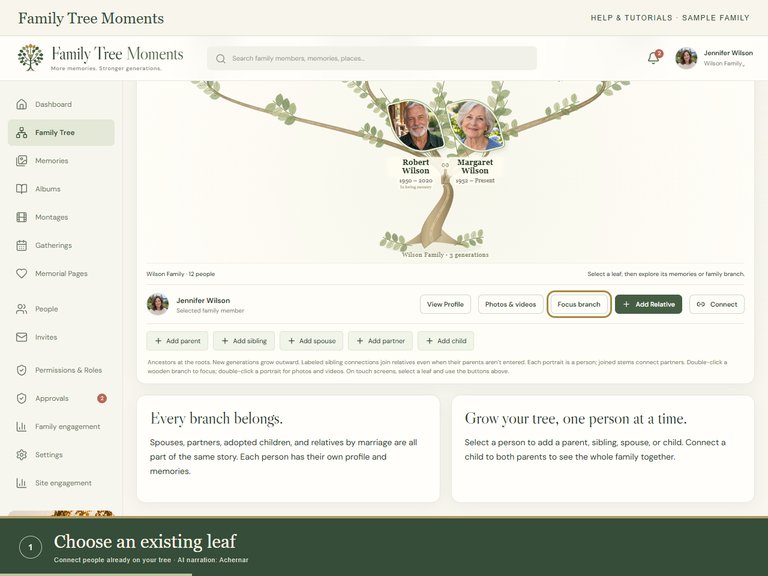
0:54Connect people already on your tree
Join existing leaves as parents, children, siblings, spouses, or partners.
 0:54
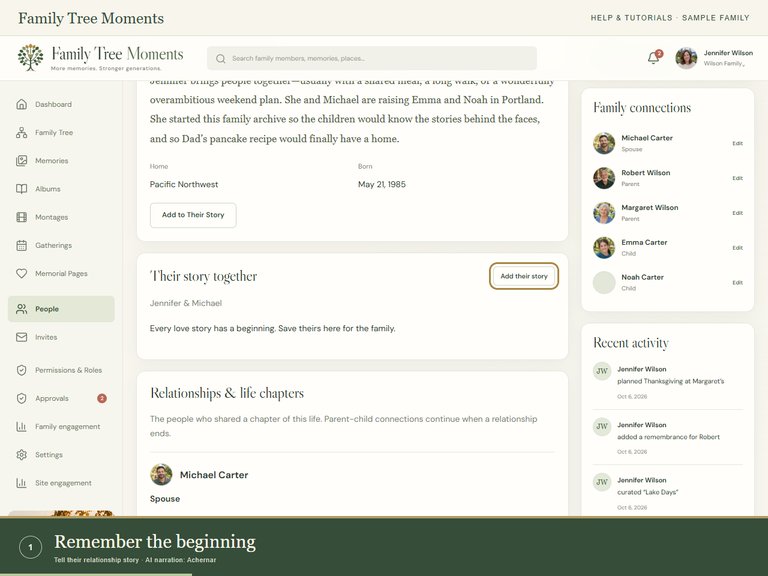
0:54Tell their relationship story
Record how they met, wedding dates, and relationships that have ended.
 0:54
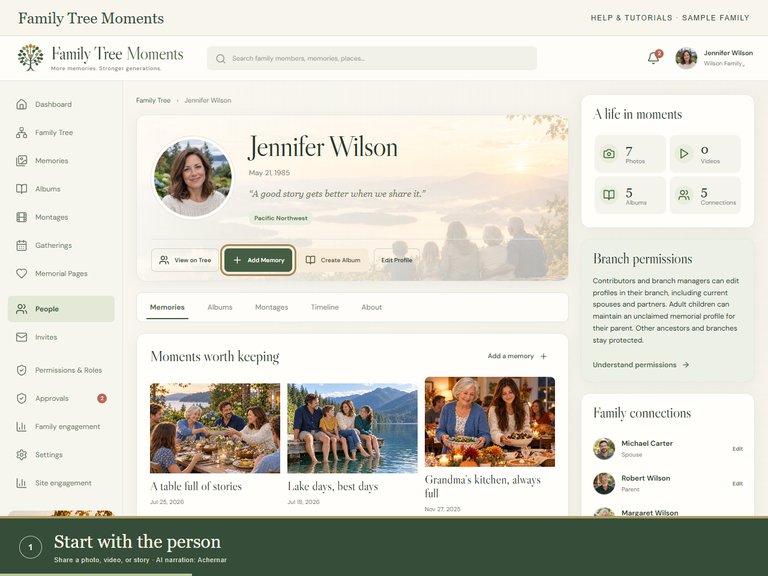
0:54Share a photo, video, or story
Add a memory from a leaf, tag the people in it, and choose who can see it.
 1:01
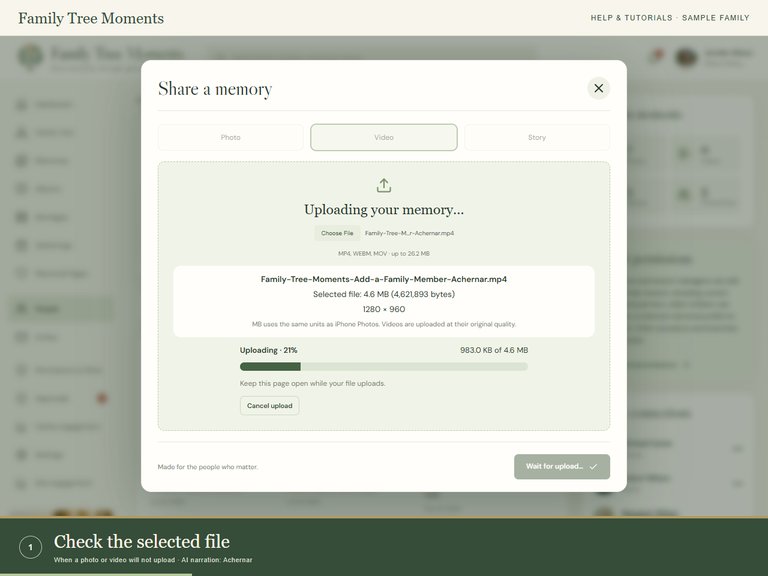
1:01When a photo or video will not upload
Understand file size, upload progress, processing, and safe retry steps.
 0:50
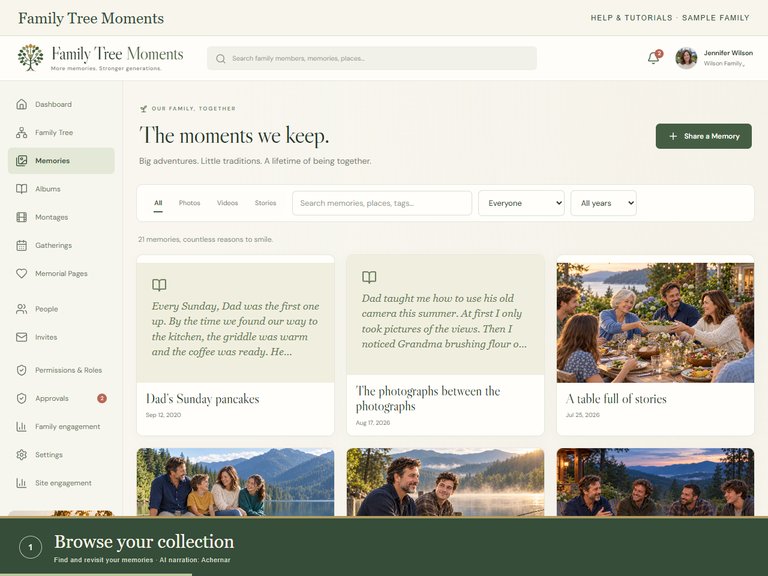
0:50Find and revisit your memories
Search, filter by person or year, open videos, and update a memory you can edit.
 0:56
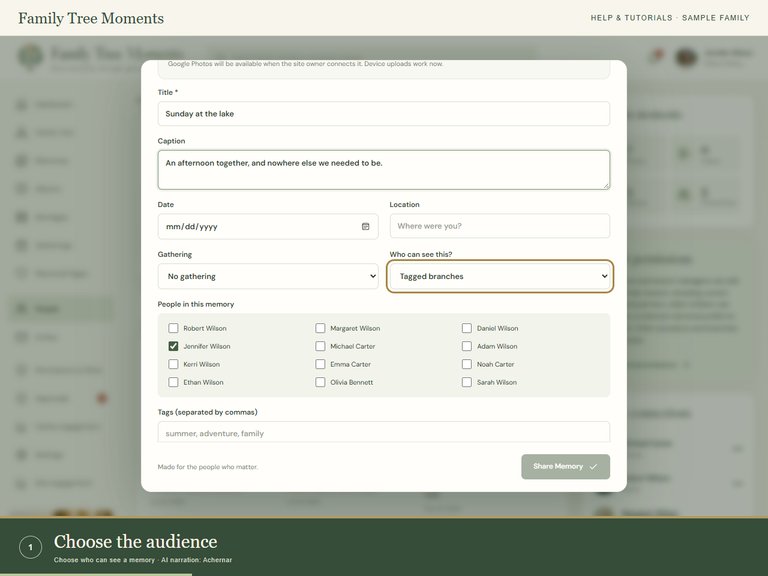
0:56Choose who can see a memory
Understand family, tagged-branch, and private visibility, plus public memorial sharing.
 0:51
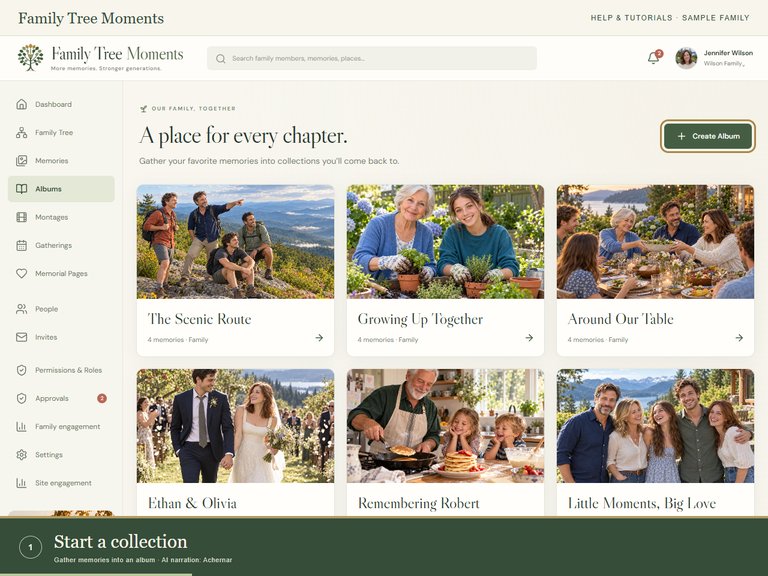
0:51Gather memories into an album
Create an album, choose its cover, arrange memories, and update it later.
 0:58
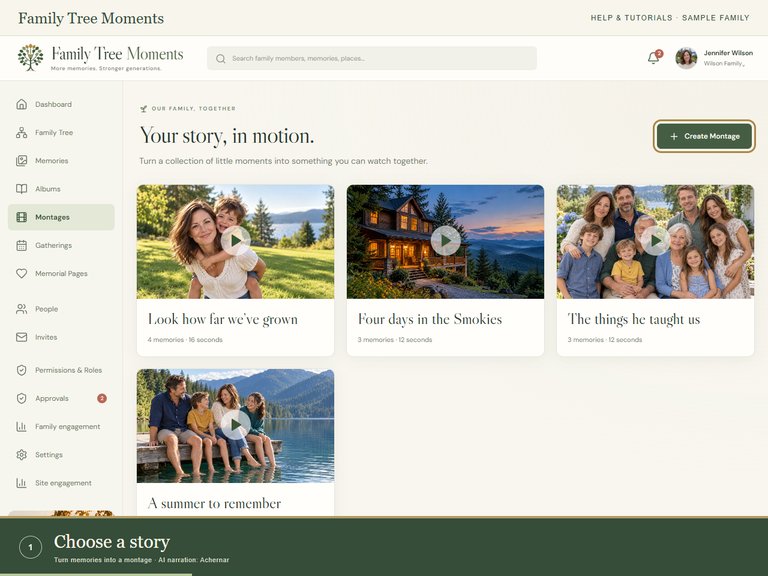
0:58Turn memories into a montage
Choose photos, arrange their order, play a slideshow, and export a WebM video.
 0:48
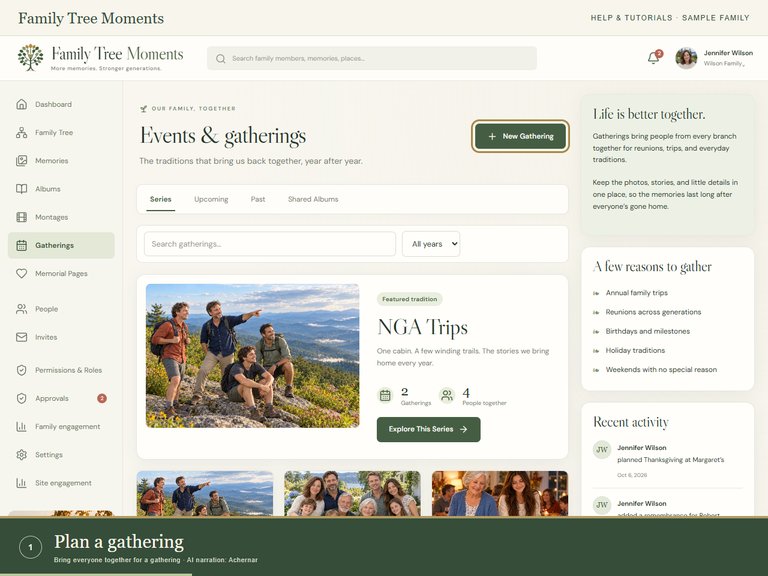
0:48Bring everyone together for a gathering
Plan an event or recurring series, manage attendees, and collect its memories.
 0:55
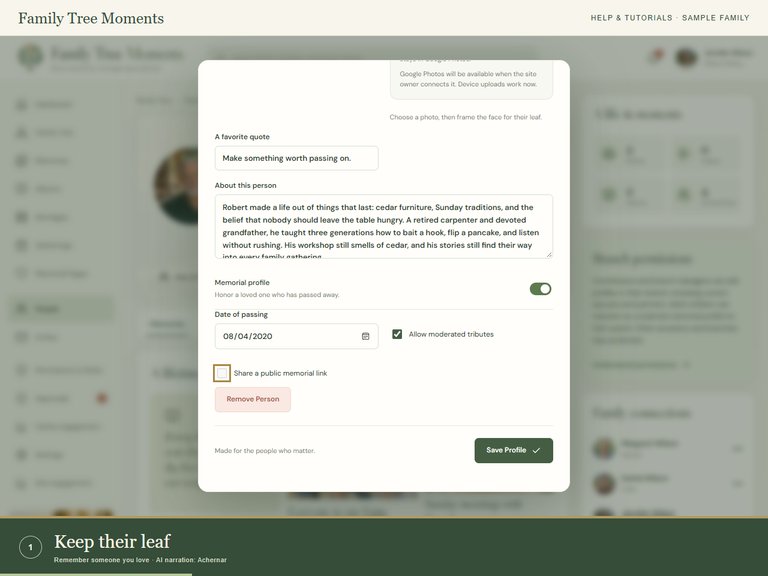
0:55Remember someone you love
Create a memorial profile, collect memories, and understand public tributes.
 0:57
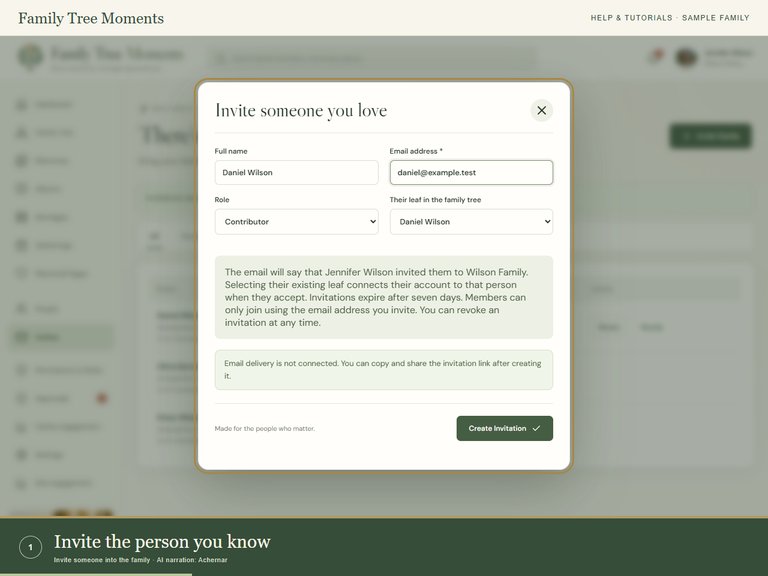
0:57Invite someone into the family
Attach an invitation to an existing leaf, share the link, and handle reminders or expired invites.
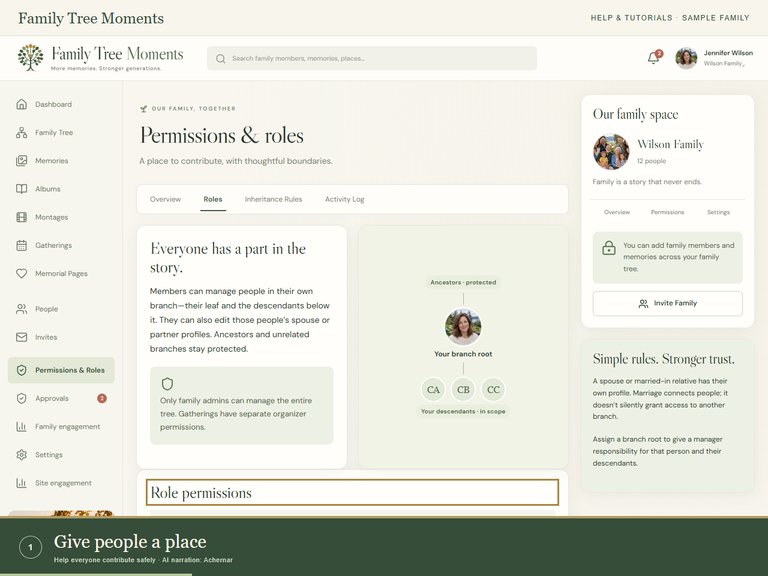 0:58
0:58Help everyone contribute safely
Assign roles and branches, understand editing rights, and review contributions.
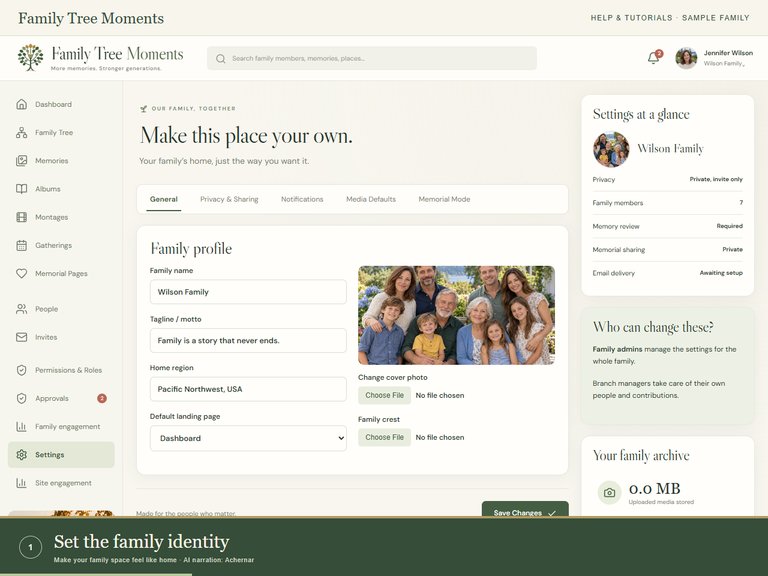 0:56
0:56Make your family space feel like home
Customize the family, choose newsletter delivery, and manage media and memorial defaults.
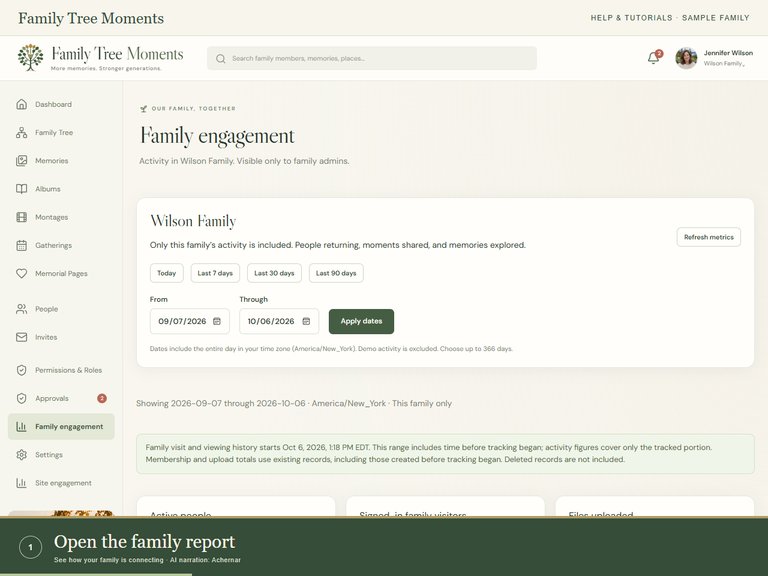 0:50
0:50See how your family is connecting
Choose dates, open metric details, inspect daily trends, and export a report.
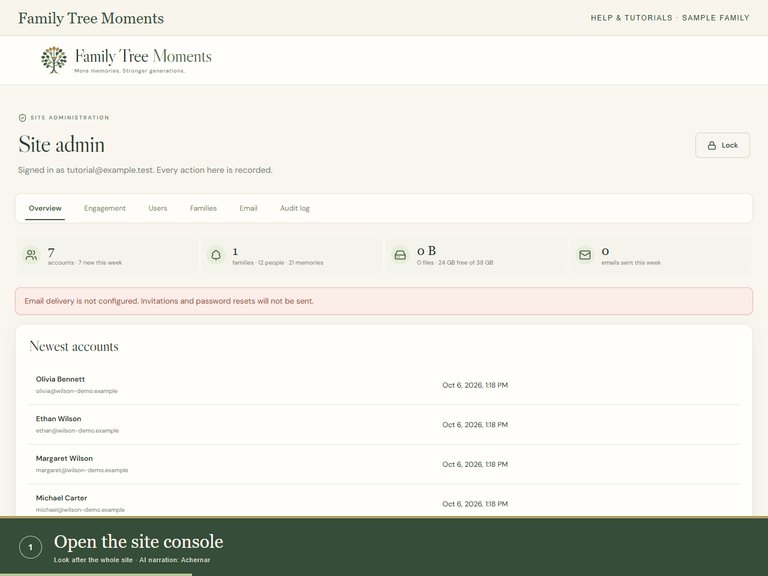 0:55
0:55Look after the whole site
Unlock the site console, inspect accounts and families, and review site-wide activity and email.
A few things families ask us.
How do I add my wife, husband, partner, or children?
Open Family Tree, select your own leaf, then use Add spouse, Add partner, or Add child below the tree. When adding a child, choose the other parent if known. If the person already has a leaf, use Connect instead of creating them again.
Watch the guideI have an invitation, but I already signed up. What now?
Open the invitation again and log in using the email address it was sent to. You can join an existing family without starting a new one. If the link has expired, ask the inviter to renew it. An existing leaf is a profile, not a sign-in account.
Watch the guideWhy can’t I correct a relative’s name?
Editing depends on your role and assigned branch. Ask a family admin to check both in Permissions & Roles. Contributors can edit within their permitted branch; being related to someone does not grant access to every profile.
Watch the guideMy upload seems stuck. What should I check?
Check the selected file size against the limit shown in the form. Keep the page open while upload and processing finish. Note any error message, file format, device, and browser. If it is too large, try a smaller exported copy and keep the original. Check for a saved memory before retrying.
Watch the guideWhy can’t I see a new person or memory?
Clear filters, return to Whole family, and use Refresh tree. Confirm you are in the correct family. A memory may be pending approval or limited by its visibility settings. An invitation alone does not necessarily mean its recipient has joined.
Watch the guideDoes removing an ex-partner from a chapter remove a parent?
No. A relationship ending does not erase parent-child connections. The life-chapter setting can hide an otherwise unconnected leaf from the main tree, but parents and people with other family connections remain connected.
Watch the guideAre my photos public?
The memory form offers Family members, Tagged branches, or Only me and reviewers. Public memorial links are separate and must be enabled by a family admin. Review an individual memorial before sharing its public link.
Watch the guideWhere is my invitation or password-reset email?
Check spam or junk and search for Family Tree Moments. Confirm that you used the invited email address. Ask your inviter for Copy Link or a renewed invitation if needed. Google and Apple sign-in only work when enabled; use email and password otherwise.
Watch the guideWho decides when the family newsletter arrives?
A family admin chooses Off, Weekly, or Monthly under Settings → Notifications, then saves the delivery day, local time, and time zone. Private and branch-only memories are excluded from the newsletter.
Watch the guideStill need a hand?
Your family admin can help with invitations, editing permissions, and family settings. For an upload problem, share the error message, file size, device, and browser—never your password.
These guides use sample people and memories. No real family information is included in the recordings.